

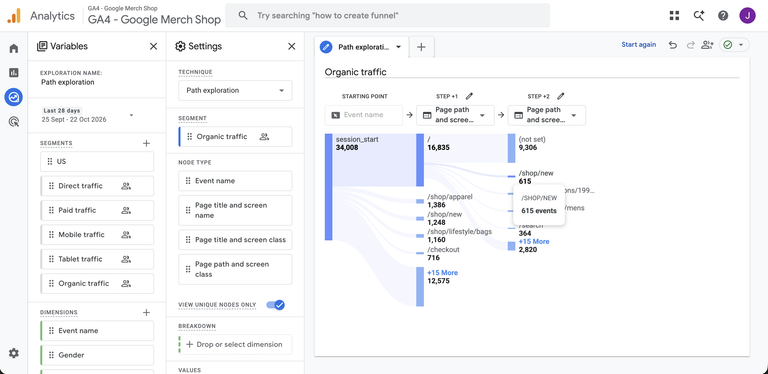
Understanding how people navigate your website is an important part of improving its performance. Maybe the most important part. You might know how many visitors you’re attracting and which pages receive the most traffic, but what happens after someone arrives?
Are your shiny new landing pages converting? Is a terrible page actually doing all the heavy lifting?
Do visitors move from your homepage to a service page? Do they read your content before enquiring? Or are they leaving before reaching the pages that matter?
A behaviour flow chart helps answer these questions by showing the journeys people take through your website.
In Google Analytics 4 (GA4), the old Behaviour Flow report from Universal Analytics has been replaced by Path Exploration. This provides a more flexible way to investigate user behaviour, including page visits and interactions such as form submissions or purchases (albeit a little worse since it doesn’t show drop-offs in the same way; we miss that a lot).
In this guide, we’ll explain how to create a behaviour flow chart in GA4, how to analyse the results and which website engagement benchmarks are worth paying attention to.
What Is a Behaviour Flow Chart in Google Analytics?
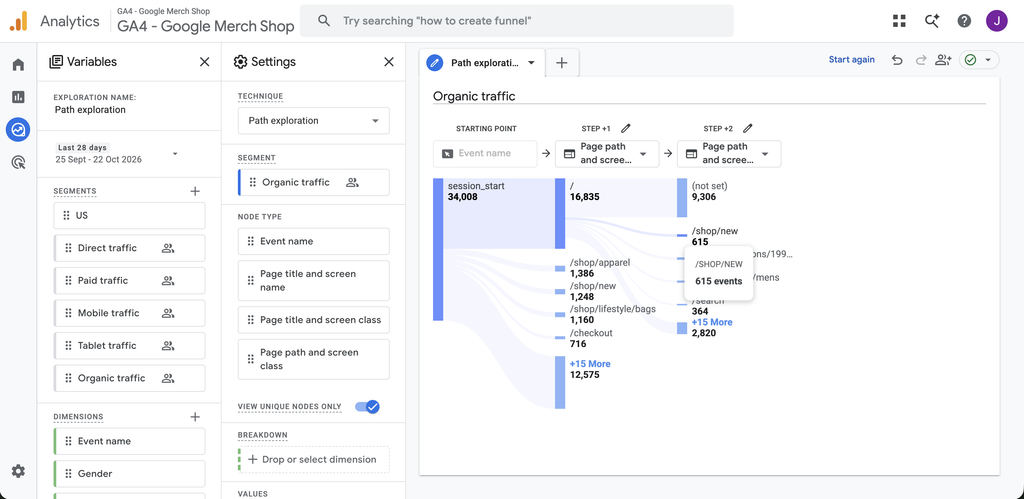
A behaviour flow chart is a visual representation of how visitors navigate through your website.
Rather than looking at individual page performance, it shows how users move between pages and interact with different elements.
For example, someone visiting a marketing agency website might follow this journey:
Homepage
SEO Services
Case Study
Enquiry Submitted
Another visitor might arrive on the same homepage but leave without visiting another page.
By examining these journeys, you can identify where visitors lose interest, which pages help encourage conversions and whether your website’s navigation is working as intended.
It’s particularly useful when reviewing the performance of your Google Ads campaigns or evaluating how organic search visitors engage with your website.
How to Create a Behaviour Flow Chart in GA4
Google has made some significant changes to reporting since Universal Analytics. You won’t find a report called Behaviour Flow in GA4, but you can create a similar visualisation using Path Exploration.
Here’s how.
Step 1: Open Google Analytics 4
First, sign in to Google Analytics and select the property you want to analyse.
Make sure you’ve selected the correct website, particularly if you manage several properties.
GA4 must already be collecting data for Path Exploration to work. You can check this by opening your standard reports and confirming that recent website activity is appearing.
Step 2: Navigate to Path Exploration
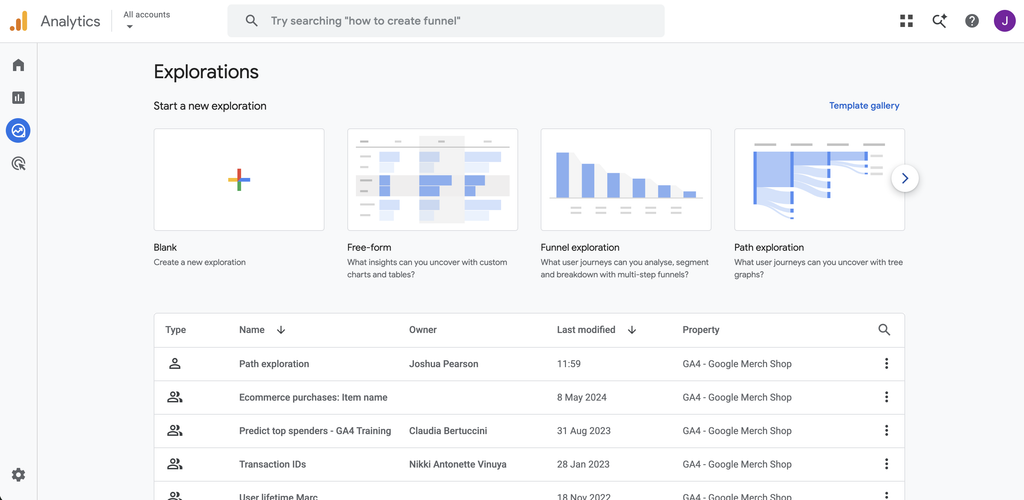
From the left-hand navigation menu:
- Click Explore.
- Under Start a new exploration, select Path exploration.
- GA4 will open an example visualisation using your website data.
- Click Start over in the top-right corner if you want to build your own analysis.
You should now have the option to select a starting point or an ending point for your behaviour flow chart.
Google provides its own Path Exploration documentation if you want to explore the available settings in more detail.
Step 3: Choose Your Starting Point & Data
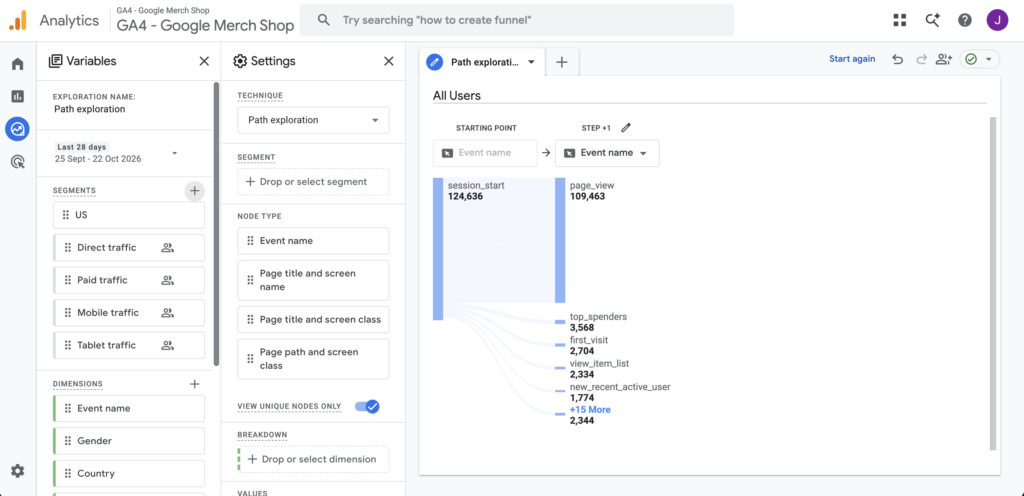
Your starting point determines where the behaviour flow begins.
For most website analyses, we’d recommend starting with a specific page, such as your homepage, a service page or a PPC landing page.
Click the Starting point box and select a node type.
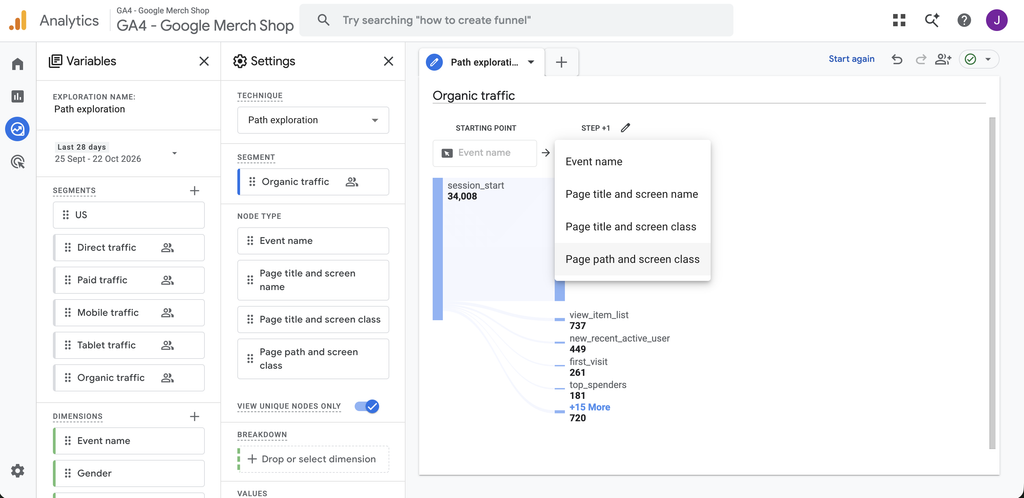
GA4 provides several options, including:
- Page title: Displays pages using their titles.
- Page path and screen class: Displays pages using their URL paths.
- Event name: Displays tracked interactions such as
page_view,form_submitorpurchase.
For analysing movement between website pages, we generally prefer page paths. They’re easier to identify when websites have similar page titles.
Select your chosen page, such as /, which typically represents your homepage.
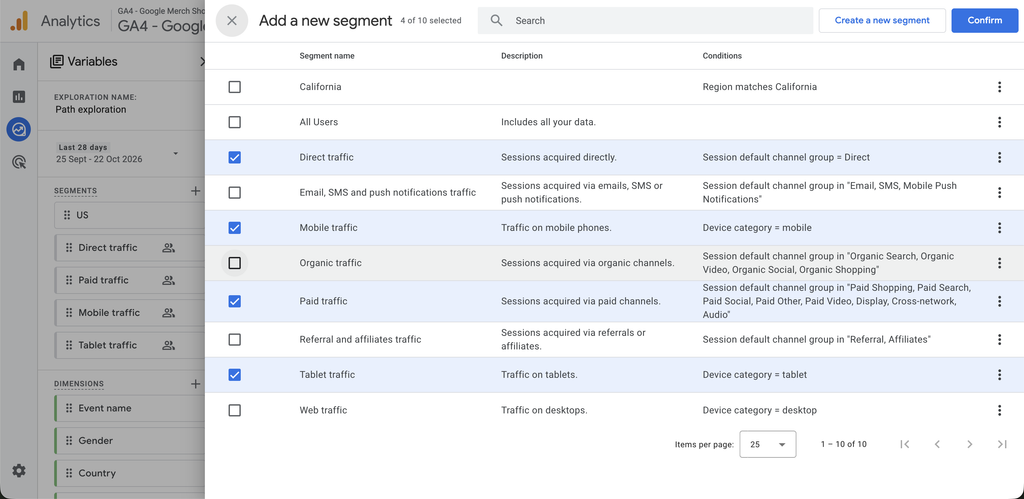
It’s also a good idea at this stage, if needed, to select the segment you want to analyse too.
Step 4: Expand the User Journey
Once you’ve selected your starting point, GA4 will display the next actions visitors took.
These appear as steps:
Starting Point → Step +1 → Step +2 → Step +3
Click any node to expand the journey further.
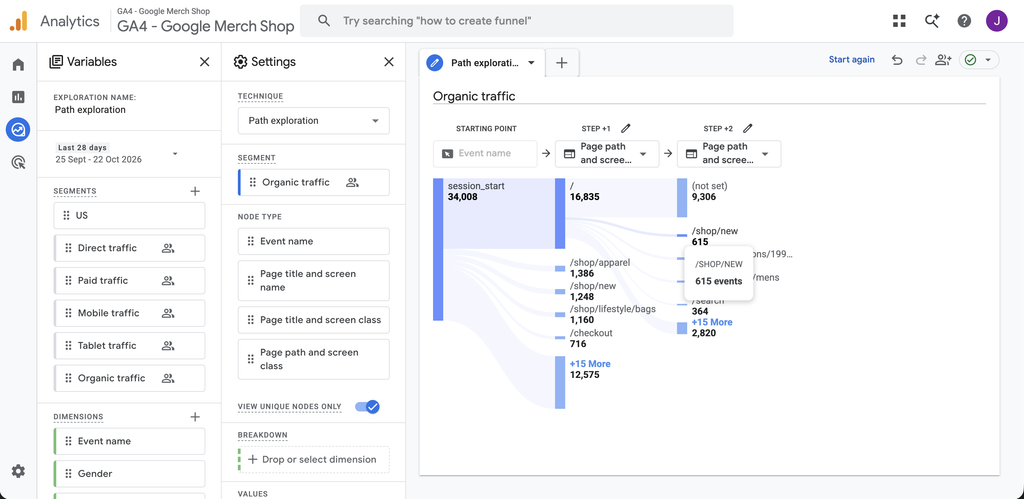
For example, if 1,000 users visited your homepage, the next step might reveal that some visited a service page, others viewed your blog and some moved directly to your contact page.
You can continue clicking nodes to see how users progress through the website.
By default, Path Exploration displays the five leading nodes at each step. You can expand the selection to see more.
Tip: If your main objective is to understand page navigation, enable View unique nodes only in the exploration settings. This can help reduce repeated consecutive events that make the chart difficult to interpret.
Step 5: Filter Your Behaviour Flow by Marketing Channel
This is where behaviour flow charts become particularly useful for marketers.
Rather than analysing everybody visiting your website, you can focus on visitors arriving through a specific marketing channel.
For example, you might want to understand whether visitors from Google Ads behave differently from organic search visitors.
To do this:
- In the Variables panel, click the + next to Segments.
- Create a new session segment.
- Choose Session default channel group as the condition.
- Select Paid Search.
- Save the segment and drag it into the Segment comparisons area of your exploration settings.
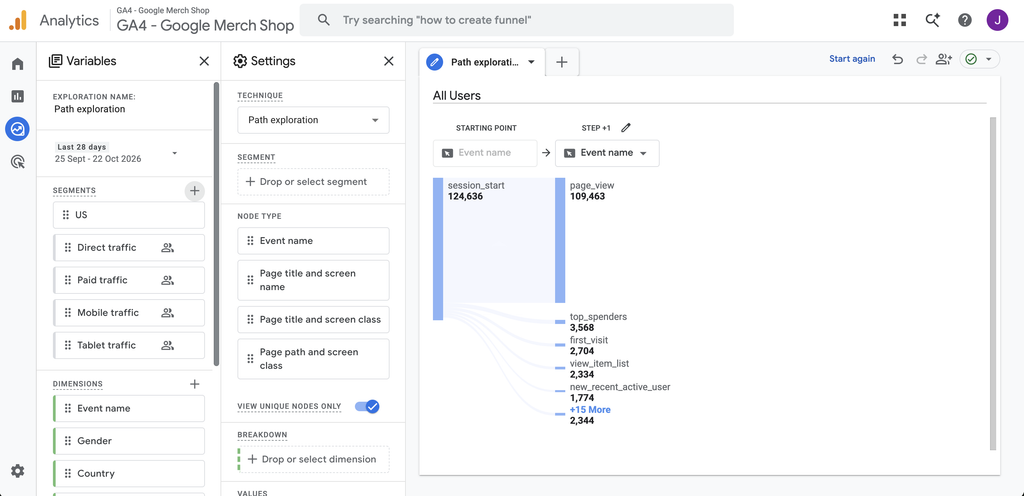
Your exploration will now focus on sessions matching that channel condition.
You can create similar segments for Organic Search, Direct, Organic Social or other channels available in your property.
For a more targeted Google Ads analysis, consider using Session source / medium = google / cpc or filtering by campaign. The Paid Search channel can include traffic from multiple advertising platforms.
Be aware that Path Exploration is based on user event sequences, and paths can span sessions. Session-level filters are useful for narrowing the data, but the resulting chart shouldn’t automatically be interpreted as one uninterrupted visit.
Step 6: Analyse What Happens Before a Conversion
So far, we’ve looked at what visitors do after arriving on a particular page. However, you can also work backwards.
This is especially useful when investigating enquiries, purchases or bookings.
To create a backwards path:
- Click Start over.
- Select Ending point rather than Starting point.
- Choose Event name.
- Select the event representing your conversion, such as
generate_leadorpurchase. - Expand the preceding steps to explore the actions that occurred before the conversion.
You can now investigate which pages and events commonly appear before someone converts.
For example, you may discover that users regularly visit a pricing page before submitting an enquiry.
This could suggest that pricing information plays an important role in their decision-making.
However, remember that appearing in a conversion path doesn’t necessarily mean a page caused the conversion. It simply shows that the page formed part of the observed journey.
How to Read and Analyse Your Behaviour Flow Chart
Creating the report is fairly straightforward. Knowing what to do with the information is more valuable.
There are several areas worth investigating.
Identify Pages Where Visitors Leave
Look for pages where journeys frequently come to an end.
If visitors regularly stop progressing after reaching a particular service page, it could indicate a problem with the content or the next action available.
However, not every exit is a bad exit.
Someone visiting a contact page might find your telephone number and call the business without triggering another tracked event.
Similarly, someone reading a blog might find the answer they wanted and leave satisfied.
This is why exit behaviour should always be assessed alongside engagement and conversion data.
Look for Unnecessary Steps
Not every customer journey should involve multiple pages.
If users need to navigate through five pages before finding your booking form, there may be an opportunity to simplify the process.
Review the paths visitors take towards your important conversion pages.
Could you introduce clearer internal links? Would a more prominent call to action help? Is key information unnecessarily difficult to find?
These are the kinds of questions a behaviour flow chart can help you investigate.
Compare Different Traffic Sources
Visitors arriving through different channels often have different intentions.
Someone searching Google for a specific service might be ready to enquire immediately. A visitor discovering your business through social media could be at a much earlier stage.
This means their behaviour shouldn’t necessarily be expected to look the same.
When comparing channels, consider the purpose of each campaign before judging its performance.
What Is a Good Exit Rate, Engagement Rate or Session Duration?
Once you’ve created your behaviour flow chart, it’s worth comparing your findings with broader website engagement data.
There is no universal benchmark for how people should behave on a website. Results depend heavily on the industry, type of website and reason someone visited.
Nevertheless, industry research can provide useful context.
Average Website Session Duration by Industry
A 2026 study by Siege Media examined first-party GA4 data from 115 website properties, covering January 2025 to June 2026.
It reported a median average session duration of 2 minutes and 42 seconds across the properties analysed.
The following figures show how average session duration varied by industry.
| Industry | Average session duration | Average engagement rate |
|---|---|---|
| E-commerce | 3m 49s | 62.7% |
| Home services | 3m 25s | 50.1% |
| Health & wellness | 2m 44s | 49.7% |
| SaaS | 2m 35s | 42.2% |
| Fintech | 2m 24s | 47.2% |
Source: Siege Media, July 2026. Figures rounded to the nearest second. The engagement rates are averages, not medians.
The research suggests that e-commerce websites tend to attract longer sessions than SaaS or fintech websites.
This isn’t especially surprising. Someone shopping online may browse several products before making a decision, while a visitor to a financial services website could be looking for a specific piece of information.
A longer session isn’t necessarily a better session.
A user who finds the information they need and submits an enquiry within 30 seconds could be considerably more valuable than someone browsing for five minutes without converting.
Average Engagement Rates by Industry
Another useful metric is engagement rate.
In GA4, a session is considered engaged if it lasts longer than 10 seconds, includes at least two page or screen views, or triggers a key event.
Google defines bounce rate as the percentage of sessions that do not meet these criteria.
Here are some additional benchmarks from Databox’s GA4 industry research.
| Industry | Median engagement rate |
|---|---|
| E-commerce & marketplaces | 63.86% |
| Health & wellness | 62.22% |
| Automotive | 60.36% |
| Healthcare | 59.97% |
| Construction | 54.92% |
| Consulting & professional services | 52.43% |
| SaaS | 52.43% |
Source: Databox, August 2023 dataset. These are older benchmarks using a different sample and methodology from the Siege Media research above, so figures should not be compared directly.
Engagement rate provides useful context for a behaviour flow chart because it helps distinguish between website visits involving meaningful engagement and visits that do not.
However, it’s important to remember that GA4’s definition of engagement is fairly broad. A session lasting just over 10 seconds can qualify, even without a conversion.
What Is a Good Website Exit Rate?
Exit rate is often confused with bounce rate, but they measure different things.
An exit occurs when a page is the last page recorded in a session. Bounce rate, on the other hand, concerns whether a session was engaged.
A page’s exit rate is typically calculated as:
Exit rate = (Exits from page ÷ Page views) × 100
For example, if a service page receives 1,000 views and is the last page viewed in 450 sessions, its exit rate would be 45%.
GA4 makes exits available as a metric within Explorations.
Unlike session duration and engagement rate, there isn’t a sufficiently reliable, universally applicable industry exit-rate benchmark we would recommend using as a performance target.
A blog post and a checkout page have completely different purposes.
A high exit rate on a blog could be perfectly normal, while the same behaviour during checkout might warrant investigation.
Instead of focusing on an arbitrary industry average, compare the exit rates of pages performing similar roles on your website.
How Do Different Marketing Channels Affect User Behaviour?
Looking at your website’s overall engagement metrics can hide meaningful differences between visitors.
Organic Search, Paid Search and Direct traffic can attract different audiences, so understanding how they interact with your website is useful.
For example, a PPC landing page might be designed to encourage an immediate enquiry, while an SEO blog may introduce a customer to the business for the first time.
You shouldn’t expect identical behaviour from both groups.
Here are some of the things we recommend investigating.
| Marketing channel | What to investigate |
|---|---|
| Organic Search | Do users explore other relevant pages after landing on your content? |
| Paid Search | Are visitors reaching the intended conversion event or leaving after the landing page? |
| Direct | Are returning visitors navigating towards important services or contact information? |
| Organic Social | Are users progressing beyond the original content that attracted them? |
| Are campaign visitors reaching the intended offer or action? |
For a practical comparison, open Reports → Acquisition → Traffic acquisition in GA4.
Review the metrics available for each channel, particularly engagement rate, average engagement time per session and key events.
Then use Path Exploration to investigate the journeys behind those numbers.
It’s also worth distinguishing average engagement time from average session duration. GA4’s engagement time measures how long your webpage is in focus or an app is in the foreground, whereas session duration measures elapsed session time.
These metrics are related, but they aren’t interchangeable.
Using Behaviour Flow Charts to Improve Google Ads Performance
One of the most useful applications of GA4 Path Exploration is understanding what happens after someone clicks a Google Ad.
You might have a campaign generating plenty of traffic but relatively few enquiries.
Google Ads can tell you how many people clicked your advert, but GA4 can help you investigate what they did afterwards.
Start by creating a segment for your Google Ads traffic and choosing the relevant landing page as your starting point.
Look at whether users interact with the page, visit other content or trigger your enquiry events.
If visitors repeatedly move from a landing page to your main services page before converting, the landing page might be missing important information.
Alternatively, if most visitors leave without taking any further action, check whether the landing page aligns with the advert and search terms driving traffic.
One important consideration is conversion tracking. If your enquiries are generated through a third-party booking system or CRM, GA4 may not automatically record the completed action.
Before drawing conclusions from the behaviour flow, make sure your important actions are being tracked correctly.
Otherwise, you could mistakenly assume visitors are abandoning your website when they’re actually completing a booking elsewhere.
Common Mistakes When Creating Behaviour Flow Charts in GA4
Although Path Exploration is a powerful reporting tool, there are a few mistakes worth avoiding.
Confusing events with page visits: GA4 tracks interactions as events. If you select Event name as your node type, the resulting chart may show events such as scroll or user_engagement rather than a straightforward sequence of pages. Switch to a page-based node type when examining navigation.
Treating every exit as a problem: A visitor leaving your website doesn’t automatically mean they had a poor experience. Consider the purpose of the page and whether the user may have achieved their objective.
Looking at all traffic together: Website-wide averages can obscure problems affecting individual marketing channels. Segment your data where possible.
Ignoring tracking limitations: Consent settings, blocked analytics scripts and incomplete event tracking can all affect the journeys recorded in GA4.
Assuming the chart represents individual sessions: Google’s Path Exploration can incorporate events across multiple sessions, depending on the analysis settings. It is a visualisation of recorded user paths, not necessarily a session-by-session replay.
How Often Should You Review Your Website’s Behaviour Flow?
For most businesses, reviewing behaviour flow as part of a monthly website performance review is a sensible starting point.
There are also situations where more frequent analysis can be useful.
For example, following the launch of a new PPC landing page, you may want to investigate user behaviour once you’ve accumulated enough traffic to identify meaningful patterns.
Similarly, after redesigning your navigation or introducing new calls to action, Path Exploration can help you understand whether visitors are following the journeys you expected.
At Peaco Marketing, we recommend treating behaviour analysis as part of your wider conversion rate optimisation (CRO) activity.
The aim isn’t simply to increase the number of pages people visit. It’s to help the right users find what they’re looking for and complete valuable actions.
Frequently Asked Questions
Does GA4 have a Behaviour Flow report?
No. The original Behaviour Flow report was part of Universal Analytics. In GA4, you can use Path Exploration to visualise the sequence of pages and events users interact with.
Is Path Exploration free in GA4?
Yes. Path Exploration is available in the standard free version of Google Analytics 4.
Can you track Google Ads visitors through your website in GA4?
Yes. You can create a segment or apply relevant filters to analyse Google Ads traffic and investigate what those visitors do after arriving on your website. Accurate campaign attribution and conversion tracking are important for meaningful results.
What is the difference between Path Exploration and Funnel Exploration?
Path Exploration helps you discover the routes users actually take through your website. Funnel Exploration is better suited to measuring progress through a defined sequence of steps, such as a product view, checkout and completed purchase.
If your objective is to find unexpected behaviour, start with Path Exploration. If you want to measure abandonment between specific stages, Funnel Exploration may be more suitable.
Why does my GA4 behaviour flow show events instead of pages?
This usually happens because the node type is set to Event name. Change the node type to Page title or Page path and screen class to focus on page navigation instead.
Conclusion
Creating a behaviour flow chart in GA4 is a straightforward way to understand how visitors interact with your website beyond the initial landing page.
By using Path Exploration, you can investigate customer journeys, identify potential obstacles to conversion and understand how visitors from different marketing channels behave.
However, the chart itself is only the starting point.
The real value comes from combining behaviour data with your wider marketing performance, including engagement metrics and completed conversions.
If you’re attracting visitors but struggling to generate enquiries, understanding what happens between the click and the conversion can help identify where improvements are needed.
At Peaco Marketing, we use analytics and conversion rate optimisation to help businesses get more value from their website traffic.
Whether you’re investing in Google Ads or building organic visibility through SEO, understanding your customers’ journeys is an important part of improving marketing performance.